

Nutanix Certified Professional (NCP) Certification NCP-US-6.5 Sample Questions Reliable
Prepare for the Actual Nutanix Certified Professional (NCP) NCP-US-6.5 Exam Practice Materials Collection
NEW QUESTION # 28
A Files administrator needs to generate a report listing the files matching those in the exhibit.
What is the most efficient way to complete this task?
- A. Use Report Builder in Files Console.
- B. Use Report Builder in File Analytics.
- C. Create a custom report in Files Console.
- D. Create a custom report in Prism Central.
Answer: B
Explanation:
The most efficient way to generate a report listing the files matching those in the exhibit is to use Report Builder in File Analytics. Report Builder is a feature that allows administrators to create custom reports based on various filters and criteria, such as file name, file type, file size, file owner, file age, file access time, file modification time, file permission change time, and so on. Report Builder can also export the reports in CSV format for further analysis or sharing. Reference: Nutanix Files Administration Guide, page 97; Nutanix File Analytics User Guide
NEW QUESTION # 29
An administrator has received an alert A130357 - VolumeGroupProtectionFailedOnPC with the following details:
* Block Serial Number: 16Suxxxxxxxx
* Alert Time: Thu Jan 19 2023 20:31:10 GMT-0800 (PST)
* Alert Type: VolumeGroupProtectionFailedOnPC
* Alert Message: A130357:VolumeGroupProtectionFailedOnPC
* Cluster ID: xxxxx
* Alert Body: Volume Group protection failed on PCWhich two conditions need to be addressed to allow successful protection of the Volume Group? (Choose two.)
- A. Volume Group is not protected in a legacy protection domain.
- B. The Protection Policy applied on Volume Group has a NearSync snapshot schedule applied.
- C. The Protection Policy applied on Volume Group has an Async snapshot schedule applied.
- D. Volume Group is protected in a legacy protection domain.
Answer: B,D
Explanation:
The alert A130357 - VolumeGroupProtectionFailedOnPC in a Nutanix environment indicates a failure to protect a Volume Group (VG) in a Protection Domain (PD) managed through Prism Central (PC). Nutanix Volumes, part of Nutanix Unified Storage (NUS), provides block storage via iSCSI, and Volume Groups can be protected using Protection Domains for snapshots and replication. The alert suggests that the protection process failed, likely due to incompatible configurations.
Understanding the Issue:
* Volume Group Protection: A Volume Group in Nutanix Volumes can be added to a Protection Domain in Prism Central for data protection (e.g., snapshots, replication).
* Protection Failed on PC: The failure occurred during the protection process, managed through Prism Central, indicating an issue with the Protection Domain or policy settings.
* Conditions to Address: The failure is likely due to configuration mismatches or unsupported settings in the Protection Domain or policy.
Analysis of Conditions:
* Option A (Volume Group is protected in a legacy protection domain): Correct. A "legacy protection domain" refers to an older protection mechanism in Nutanix (e.g., from earlier AOS versions) that may not be fully compatible with newer Prism Central features or Volume Group protection workflows. If the Volume Group is part of a legacy PD, the protection process may fail due to deprecated features or APIs. Addressing this involves migrating the Volume Group to a modern Protection Domain in Prism Central, ensuring compatibility.
* Option B (The Protection Policy applied on Volume Group has an Async snapshot schedule applied): Incorrect. An Async (asynchronous) snapshot schedule is a standard and supported configuration for Volume Group protection in a Protection Domain. Async schedules take snapshots at intervals (e.g., hourly, daily) and replicate them to a remote site, and this does not cause protection failures-it's a valid setup.
* Option C (The Protection Policy applied on Volume Group has a NearSync snapshot schedule applied): Correct. NearSync is a near-synchronous replication schedule (e.g., 1-minute RPO, as in Question 24) that is supported for VMs and some Nutanix Files configurations, but it is not supported for Volume Groups in a Protection Domain. If a NearSync schedule is applied to a Volume Group's Protection Policy, the protection will fail because Volume Groups only support Async schedules.
Addressing this involves changing the schedule to an Async policy, which is compatible with Volume Groups.
* Option D (Volume Group is not protected in a legacy protection domain): Incorrect. This option suggests that the Volume Group is already in a modern (non-legacy) Protection Domain, which would not cause the failure. The issue lies in specific conditions (e.g., legacy PD or incompatible schedule), so this option does not identify a condition that needs addressing.
Selected Conditions:
* A: A legacy Protection Domain can cause compatibility issues, leading to protection failures. Migrating to a modern PD in Prism Central resolves this.
* C: A NearSync schedule is not supported for Volume Groups, causing the protection to fail. Switching to an Async schedule ensures compatibility.
Why These Conditions?
* Legacy Protection Domain (A): Legacy PDs may use outdated mechanisms that are incompatible with Prism Central's modern protection workflows for Volume Groups, causing failures.
* NearSync Schedule (C): Volume Groups in a Protection Domain only support Async snapshot schedules. A NearSync schedule, designed for low-RPO replication, is not supported and will cause the protection process to fail.
Exact Extract from Nutanix Documentation:
From the Nutanix Prism Alerts Reference Guide (available on the Nutanix Portal):
"Alert A130357 - VolumeGroupProtectionFailedOnPC: This alert is triggered when Volume Group protection fails in a Protection Domain managed through Prism Central. Common causes include:
* The Volume Group is protected in a legacy protection domain, which is not fully compatible with modern Prism Central workflows. Migrate the Volume Group to a modern Protection Domain.
* The Protection Policy applied to the Volume Group has a NearSync snapshot schedule, which is not supported for Volume Groups. Change the schedule to an Async policy to allow successful protection."
:
Nutanix Prism Alerts Reference Guide, Version 6.0, Section: "Alert A130357 - VolumeGroupProtectionFailedOnPC" (Nutanix Portal).
Nutanix Volumes Administration Guide, Version 6.0, Section: "Protecting Volume Groups with Protection Domains" (Nutanix Portal).
Nutanix Certified Professional - Unified Storage (NCP-US) Study Guide, Section: "Nutanix Volumes Data Protection".
NEW QUESTION # 30
An administrator needs to protect a Files cluster unique policies for different shares.
How should the administrator meet this requirement?
- A. Create a protection domain in the Data Protection view in Prism Central.
- B. Create a protection domain in the Data Protection view in Prism Element.
- C. Configure data protection polices in the Files view in Prism Central.
- D. Configure data protection polices in File Server view in Prism Element
Answer: C
Explanation:
The administrator can meet this requirement by configuring data protection policies in the Files view in Prism Central. Data protection policies are policies that define how file data is protected by taking snapshots, replicating them to another site, or tiering them to cloud storage. Data protection policies can be configured for each share or export in a file server in the Files view in Prism Central. The administrator can create different data protection policies for different shares or exports based on their protection needs and requirements. Reference: Nutanix Files Administration Guide, page 79; Nutanix Files Solution Guide, page 9
NEW QUESTION # 31
Which protocols are supported by Files?
- A. SMBv1. SMBv2, NFSv2, NFSv3
- B. SMBv2 SMBv3, NFSv3, NFSv4
- C. SMBv1. SMBv2, NFSv3, NFSv4
- D. SMBv2 SMBv3, NFSv2, NFSv3
Answer: B
Explanation:
The protocols that are supported by Files are SMBv2, SMBv3, NFSv3, and NFSv4. SMB (Server Message Block) is a protocol that allows clients to access files, printers, and other resources on a network. NFS (Network File System) is a protocol that allows clients to access files on a remote server as if they were local.
Files supports both SMB and NFS protocols for creating shares and exports that can be accessed by different types of clients. References: Nutanix Files Administration Guide, page 31; Nutanix Files Solution Guide, page 6
NEW QUESTION # 32
An administrator is able to review and modify objects in a registered ESXI cluster from a PE instance, but when the administrator attempts to deploy an Objects cluster to the same ESXi cluster, the error that is shown in the exhibit is shown.
What is the appropriate configuration to verify to allow successful Objects cluster deployment to this ESXi cluster?
- A. Ensure that vCenter in PE cluster is registered using FQDN and that vCenter details in Objects UI are using IP address.
- B. Replace the expired self-signed SSL certificate for the Object Store with a non-expired ' signed by a valid Certificate Authority.
- C. Ensure that vCenter in PE cluster is registered using FQDN and that vCenter details in Objects UI are using FQDN.
- D. Replace the expired self-signed SSL certificate for the Object Store with a non-expired self signed SSL certificate.
Answer: C
Explanation:
The appropriate configuration to verify to allow successful Objects cluster deployment to this ESXi cluster is to ensure that vCenter in PE cluster is registered using FQDN (Fully Qualified Domain Name) and that vCenter details in Objects UI are using FQDN. FQDN is a domain name that specifies the exact location of a host in the domain hierarchy. For example, esxi01.nutanix.com is an FQDN for an ESXi host. Using FQDN instead of IP addresses can avoid certificate validation errors when deploying Objects clusters to ESXi clusters. Reference: Nutanix Objects User Guide, page 9; Nutanix Objects Troubleshooting Guide, page 5
NEW QUESTION # 33
What is a mandatory criterion for configuring Smart Tier?
- A. Target URL over HTTP
- B. VPC name
- C. Certificate
- D. Access and secret keys
Answer: D
Explanation:
Smart Tiering in Nutanix Files, part of Nutanix Unified Storage (NUS), allows infrequently accessed (Cold) data to be tiered to external storage, such as a public cloud (e.g., AWS S3, Azure Blob), to free up space on the primary cluster (as noted in Question 34). Configuring Smart Tiering requires setting up a connection to the external storage target, which involves providing credentials and connectivity details.
Smart Tiering requires a connection to an external storage target, such as a cloud provider. The access key and secret key are mandatory to authenticate Nutanix Files with the target (e.g., an S3 bucket), enabling secure data tiering. Without these credentials, the tiering configuration cannot be completed, making them a mandatory criterion.
Exact Extract from Nutanix Documentation:
From the Nutanix Files Administration Guide (available on the Nutanix Portal):
"To configure Smart Tiering in Nutanix Files, you must provide the access key and secret key for the external storage target (e.g., AWS S3, Azure Blob). These credentials are mandatory to authenticate with the cloud provider and enable data tiering to the specified target."
:
Nutanix Files Administration Guide, Version 4.0, Section: "Configuring Smart Tiering" (Nutanix Portal).
Nutanix Certified Professional - Unified Storage (NCP-US) Study Guide, Section: "Nutanix Files Smart Tiering".
NEW QUESTION # 34
An administrator is tasked with deploying a Microsoft Server Failover Cluster for a critical application that uses shared storage.
The failover cluster instance will consist of VMs running on an AHV-hosted cluster and bare metal servers for maximum resiliency.
What should the administrator do to satisfy this requirement?
- A. Create a Bucket with Objects.
- B. Provision a new Storage Container.
- C. Create an SMB Share with Files.
- D. Provision a Volume Group with Volume.
Answer: D
Explanation:
Nutanix Volumes allows administrators to provision a volume group with one or more volumes that can be attached to multiple VMs or physical servers via iSCSI. This enables the creation of a Microsoft Server Failover Cluster that uses shared storage for a critical application. The volume group can be attached to VMs running on an AHV-hosted cluster and bare metal servers for maximum resiliency1. Reference: Nutanix Volumes Administration Guide1
NEW QUESTION # 35
With the settings shown on the exhibit, if there were 1000 files in the repository, how many files would have to be... anomaly alert to the administrator?
- A. 0
- B. 1
- C. 2
- D. 3
Answer: C
Explanation:
With the settings shown on the exhibit, if there were 1000 files in the repository, 10 files would have to be deleted within an hour to trigger an anomaly alert to the administrator. Anomaly alert is a feature that notifies the administrator when there is an unusual or suspicious activity on file data, such as mass deletion or encryption. Anomaly alert can be configured with various parameters, such as threshold percentage, time window, minimum number of files, and so on. In this case, the threshold percentage is set to 1%, which means that if more than 1% of files in a repository are deleted within an hour, an anomaly alert will be triggered. Since there are 1000 files in the repository, 1% of them is 10 files. Therefore, if 10 or more files are deleted within an hour, an anomaly alert will be sent to the administrator. Reference: Nutanix Files Administration Guide, page 98; Nutanix Data Lens User Guide
NEW QUESTION # 36
What is the minimum and maximum file size limitations for Smart Tiering?
- A. 128 IOB minimum and 5 TiB maximum
- B. 64 KiB minimum and 15 TiB maximum
- C. 128 KiB minimum and 13 TiB maximum
- D. 64 KiB minimum and 5 TiB maximum
Answer: D
Explanation:
Smart Tiering is a feature that allows Files to tier data across different storage tiers based on the file size and access frequency. Smart Tiering supports files with a minimum size of 64 KiB and a maximum size of 5 TiB2. Reference: Nutanix Files Administration Guide2
NEW QUESTION # 37
An administrator is upgrading Files from version 3.7 to 4.1 in the highly secured environment the pre-upgrade check fail with below error:
FileServer preupgrade check failed with cause (s) Sub task poll timed out What initial troubleshooting step should the administrator take?
- A. Check the there is enough disk space on FSVMs.
- B. Examine the failed tasks on the FSVMs
- C. Increase upgrades timeout from ecli
- D. Verify connectivity between the FSVMs.
Answer: D
Explanation:
One of the possible causes of a failed pre-upgrade check for Files is network connectivity issues between the FSVMs. The administrator should verify that there are no firewall rules or network policies that block the communication between the FSVMs on ports 22 (SSH), 9440 (HTTPS), and 2009 (RPC). The administrator can use tools such as ping, traceroute, and telnet to test the connectivity between the FSVMs. Reference: Nutanix Support Portal - Troubleshooting Nutanix Files Upgrade Issues
NEW QUESTION # 38
An administrator has received an alert AI303551 - VolumeGroupProtectionFailed details of alerts as follows:
Which error logs should the administrator be reviewing to determine why the relative service is down:
- A. arithmos.ERROR
- B. solver.log
Answer: A
Explanation:
The error log that the administrator should review to determine why the relative service is down is arithmos.
ERROR. Arithmos is a service that runs on each CVM and provides volume group protection functionality for Volumes. Volume group protection is a feature that allows administrators to create protection policies for volume groups, which define how often snapshots are taken, how long they are retained, and where they are replicated. If arithmos.ERROR log shows any errors or exceptions related to volume group protection, it can indicate that the relative service is down or not functioning properly. References: Nutanix Volumes Administration Guide, page 29; Nutanix Volumes Troubleshooting Guide
NEW QUESTION # 39
After configuring Smart DR, an administrator is unable to see the policy in the Policies tab. The administrator has confirmed that all FSVMs are able to connect to Prism Central via port 9440 bidirectionally. What is the possible reason for this issue?
- A. Port 7515 should be open for all External/Client IPs of FSVMs on the Source and Target cluster.
- B. Port 7515 should be open for all Internal/Storage IPs of FSVMs on the Source and Target cluster.
- C. The primary and recovery file servers do not have the same version.
- D. The primary and recovery file servers do not have the same protocols.
Answer: C
Explanation:
Smart DR in Nutanix Files, part of Nutanix Unified Storage (NUS), is a disaster recovery (DR) solution that simplifies the setup of replication policies between file servers (e.g., using NearSync, as seen in Question 24).
After configuring a Smart DR policy, the administrator expects to see it in the Policies tab in Prism Central, but it is not visible despite confirmed connectivity between FSVMs and Prism Central via port 9440 (used for Prism communication, as noted in Question 21). This indicates a potential mismatch or configuration issue.
Analysis of Options:
* Option A (The primary and recovery file servers do not have the same version): Correct. Smart DR requires that the primary and recovery file servers (source and target) run the same version of Nutanix Files to ensure compatibility. If the versions differ (e.g., primary on Files 4.0, recovery on Files 3.8), the Smart DR policy may fail to register properly in Prism Central, resulting in it not appearing in the Policies tab. This is a common issue in mixed-version environments, as Smart DR relies on consistent features and APIs across both file servers.
* Option B (Port 7515 should be open for all External/Client IPs of FSVMs on the Source and Target cluster): Incorrect. Port 7515 is not a standard port for Nutanix Files or Smart DR communication. The External/Client network of FSVMs (used for SMB/NFS traffic) communicates with clients, not between FSVMs or with Prism Central for policy management. Smart DR communication between FSVMs and Prism Central uses port 9440 (already confirmed open), and replication traffic between FSVMs typically uses other ports (e.g., 2009, 2020), but not 7515.
* Option C (The primary and recovery file servers do not have the same protocols): Incorrect.
Nutanix Files shares can support multiple protocols (e.g., SMB, NFS), but Smart DR operates at the file server level, not the protocol level. The replication policy in Smart DR replicates share data regardless of the protocol, and a protocol mismatch would not prevent the policy from appearing in the Policies tab-it might affect client access, but not policy visibility.
* Option D (Port 7515 should be open for all Internal/Storage IPs of FSVMs on the Source and Target cluster): Incorrect. Similar to option B, port 7515 is not relevant for Smart DR or Nutanix Files communication. The Internal/Storage network of FSVMs is used for communication with the Nutanix cluster's storage pool, but Smart DR policy management and replication traffic do not rely on port
7515. The key ports for replication (e.g., 2009, 2020) are typically already open, and the issue here is policy visibility, not replication traffic.
Why Option A?
Smart DR requires compatibility between the primary and recovery file servers, including running the same version of Nutanix Files. A version mismatch can cause the Smart DR policy to fail registration in Prism Central, preventing it from appearing in the Policies tab. Since port 9440 connectivity is already confirmed, the most likely issue is a version mismatch, which is a common cause of such problems in Nutanix Files DR setups.
Exact Extract from Nutanix Documentation:
From the Nutanix Files Administration Guide (available on the Nutanix Portal):
"Smart DR requires that the primary and recovery file servers run the same version of Nutanix Files to ensure compatibility. A version mismatch between the source and target file servers can prevent the Smart DR policy from registering properly in Prism Central, resulting in the policy not appearing in the Policies tab."
:
Nutanix Files Administration Guide, Version 4.0, Section: "Smart DR Configuration Requirements" (Nutanix Portal).
Nutanix Certified Professional - Unified Storage (NCP-US) Study Guide, Section: "Nutanix Files Disaster Recovery".===========
NEW QUESTION # 40
An administrator has received an alert AI60068 - ADSDuplicationIPDetected details of alert as follows: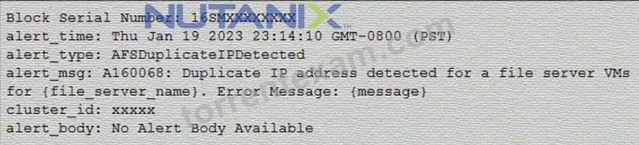
Which error log should the administrator review to determine the related Duplicate IP address involved?
- A. Minerva.nvm.log
- B. Tcpkill.log
- C. Solver.log
- D. Minerva_cvm.log
Answer: A
Explanation:
https://portal.nutanix.com/page/documents/kbs/details?targetId=kA00e000000CvHICA0
NEW QUESTION # 41
Before upgrading Files or creating a file server, which component must first be upgraded to a compatible version?
- A. Prism Central
- B. FSM
- C. File Analytics
- D. FSVM
Answer: A
Explanation:
The component that must first be upgraded to a compatible version before upgrading Files or creating a file server is Prism Central. Prism Central is a web-based user interface that allows administrators to manage multiple Nutanix clusters and services, including Files. Prism Central must be upgraded to a compatible version with Files before upgrading an existing file server or creating a new file server. Otherwise, the upgrade or creation process may fail or cause unexpected errors. Reference: Nutanix Files Administration Guide, page 21; Nutanix Files Upgrade Guide
NEW QUESTION # 42
An administrator has connected 100 users to multiple Files shares to perform read and write activity. The administrator needs to view audit trails in File Analytics of these 100 users. From which two Audit Trail options can the administrator choose to satisfy this task? (Choose two.)
- A. Directory
- B. Client IP
- C. Share Name
- D. Folders
Answer: B,C
Explanation:
Nutanix File Analytics, part of Nutanix Unified Storage (NUS), provides audit trails to track user activities within Nutanix Files shares. Audit trails include details such as who accessed a file, from where, and what actions were performed. The administrator needs to view the audit trails for 100 users, which requires filtering or grouping the audit data by relevant criteria.
Analysis of Options:
* Option A (Share Name): Correct. Audit trails in File Analytics can be filtered by Share Name, allowing the administrator to view activities specific to a particular share. Since the 100 users are connected to multiple shares, filtering by Share Name helps narrow down the audit trails to the shares being accessed by these users, making it easier to analyze their activities.
* Option B (Client IP): Correct. File Analytics audit trails include the Client IP address from which a user accesses a share (as noted in Question 14). Filtering by Client IP allows the administrator to track the activities of users based on their IP addresses, which can be useful if the 100 users are accessing shares from known IPs, helping to identify their read/write activities.
* Option C (Directory): Incorrect. While audit trails track file and directory-level operations,
"Directory" is not a standard filter option in File Analytics audit trails. The audit trails can show activities within directories, but the primary filtering options are more granular (e.g., by file) or higher- level (e.g., by share).
* Option D (Folders): Incorrect. Similar to "Directory," "Folders" is not a standard filter option in File Analytics audit trails. While folder-level activities are logged, the audit trails are typically filtered by Share Name, Client IP, or specific files, not by a generic "Folders" category.
Selected Options:
* A: Filtering by Share Name allows the administrator to focus on the specific shares accessed by the 100 users.
* B: Filtering by Client IP enables tracking user activities based on their IP addresses, which is useful for identifying the 100 users' actions across multiple shares.
Exact Extract from Nutanix Documentation:
From the Nutanix File Analytics Administration Guide (available on the Nutanix Portal):
"File Analytics Audit Trails allow administrators to filter user activities by various criteria, including Share Name and Client IP. Filtering by Share Name enables viewing activities on a specific share, while filtering by Client IP helps track user actions based on their source IP address."
:
Nutanix File Analytics Administration Guide, Version 4.0, Section: "Using Audit Trails in File Analytics" (Nutanix Portal).
Nutanix Certified Professional - Unified Storage (NCP-US) Study Guide, Section: "Nutanix File Analytics Audit Features".
NEW QUESTION # 43
Which port is required between a CVM or Prism Central to insights,nutanix.com for Data Lens configuration?
- A. 0
- B. 1
- C. 2
- D. 3
Answer: D
Explanation:
Data Lens is a SaaS that provides file analytics and reporting, anomaly detection, audit trails, ransomware protection features, and tiering management for Nutanix Files. To configure Data Lens, one of the network requirements is to allow HTTPS (port 443) traffic between a CVM or Prism Central to insights.nutanix.com. This allows Data Lens to collect metadata and statistics from the FSVMs and display them in a graphical user interface. Reference: Nutanix Files Administration Guide, page 93; Nutanix Data Lens User Guide
NEW QUESTION # 44
Which two methods can be used to upgrade Files? (Choose two.)
- A. Prism Element - LCM
- B. Prism Element - One-click
- C. Prism Central - Files Manager
- D. Prism Central - LCM
Answer: C,D
Explanation:
Nutanix Files, part of Nutanix Unified Storage (NUS), can be upgraded to newer versions to gain access to new features, bug fixes, and improvements. Upgrading Files involves updating the File Server Virtual Machines (FSVMs) and can be performed using Nutanix's management tools.
Analysis of Options:
* Option A (Prism Element - LCM): Incorrect. Life Cycle Manager (LCM) in Prism Element is used to manage upgrades for AOS, hypervisors, and other cluster components, but it does not directly handle Nutanix Files upgrades. Files upgrades are managed through Prism Central, as Files is a distributed service that requires centralized management.
* Option B (Prism Element - One-click): Incorrect. Prism Element does not have a "one-click" upgrade option for Nutanix Files. One-click upgrades are typically associated with hypervisor upgrades (e.g., ESXi, as in Question 47) or AOS upgrades, not Files. Files upgrades are performed via Prism Central.
* Option C (Prism Central - LCM): Correct. Life Cycle Manager (LCM) in Prism Central can be used to upgrade Nutanix Files. LCM in Prism Central manages upgrades for Files by downloading the Files software bundle, distributing it to FSVMs, and performing a rolling upgrade to minimize downtime.
This is a supported and recommended method for upgrading Files.
* Option D (Prism Central - Files Manager): Correct. The Files Manager (or Files Console) in Prism Central provides a UI for managing Nutanix Files, including upgrades. The administrator can use the Files Manager to initiate an upgrade by uploading a Files software bundle or selecting an available version, and the upgrade process is managed through Prism Central, ensuring a coordinated update across all FSVMs.
Selected Methods:
* C: LCM in Prism Central automates the Files upgrade process, making it a streamlined method.
* D: The Files Manager in Prism Central provides a manual upgrade option through the UI, offering flexibility for administrators.
Exact Extract from Nutanix Documentation:
From the Nutanix Files Administration Guide (available on the Nutanix Portal):
"Nutanix Files can be upgraded using two methods in Prism Central: Life Cycle Manager (LCM) and the Files Manager. LCM in Prism Central automates the upgrade process by downloading and applying the Files software bundle, while the Files Manager allows administrators to manually initiate the upgrade by uploading a software bundle or selecting an available version."
:
Nutanix Files Administration Guide, Version 4.0, Section: "Upgrading Nutanix Files" (Nutanix Portal).
Nutanix Certified Professional - Unified Storage (NCP-US) Study Guide, Section: "Nutanix Files Upgrade Methods".
Multiprotocol access for SMB and NFS requires user identity mapping between Windows and Linux/Unix environments, which Nutanix Files achieves through Active Directory integration. If the file server is not joined to an AD domain, the system cannot enable multiprotocol access, and the "Enable multiprotocol access for NFS clients" setting will not be available when creating a share. Configuring the AD connection resolves this issue.
Exact Extract from Nutanix Documentation:From the Nutanix Files Administration Guide (available on the Nutanix Portal):
"Multiprotocol access for SMB and NFS shares requires the file server to be joined to an Active Directory domain. AD integration enables user identity mapping between Windows and Linux/Unix clients. If the connection to Active Directory has not been configured, the 'Enable multiprotocol access for NFS clients' setting will not be available when creating a share." References:
Nutanix Files Administration Guide, Version 4.0, Section: "Multiprotocol Share Configuration" (Nutanix Portal).
Nutanix Certified Professional - Unified Storage (NCP-US) Study Guide, Section: "Nutanix Files Multiprotocol Access".
NEW QUESTION # 45
Which tool allows a report on file sizes to be automatically generated on a weekly basis?
- A. Files view in Prism Central
- B. Data Lens
- C. File Analytics
- D. Files Console via Prism Element
Answer: B
Explanation:
Data Lens is a feature that provides insights into the data stored in Files, such as file types, sizes, owners, permissions, and access patterns. Data Lens allows administrators to create reports on various aspects of their data and schedule them to run automatically on a weekly basis. References: Nutanix Data Lens Administration Guide
NEW QUESTION # 46
What is a prerequisite for deploying Smart DR?
- A. Requires one-to-many shares.
- B. The primary and recovery file servers must have the same domain name.
- C. Open TCP port 7515 on all client network IPs (uni-directionally on the source and recovery file servers).
- D. The Files Manager must have at least three file servers.
Answer: C
Explanation:
Smart DR is a feature that allows share-level replication between active file server instances for disaster recovery. To configure Smart DR, one of the prerequisites is to open TCP port 7515 on all client network IPs (uni-directionally on the source and recovery file servers). This port is used for communication between the FSVMs and the replication engine. Reference: Nutanix Files Administration Guide, page 79; Nutanix Files Solution Guide, page 9
NEW QUESTION # 47
An administrator has created a distributed share on the File cluster. The administrator connects to the share using Windows Explorer and starts creating folders in the share. The administrator observes that none of the created folder can be renamed as the company naming convention requires.
How should the administrator resolve this issue?
- A. Modify the Files shares to use the NFS protocol.
- B. Modify the read/write permissions on the created folders.
- C. Use the Microsoft Shared Folder MMC Snapln.
- D. Use the Files MMC Snapln and rename the folders.
Answer: D
Explanation:
The administrator should resolve this issue by using the Files MMC Snap-in and renaming the folders. The Files MMC Snap-in is a tool that allows administrators to manage Files shares and exports from a Windows machine. The administrator can use the Files MMC Snap-in to connect to a distributed share or export and rename the top-level directories that are hosted by different FSVMs. Renaming the directories from Windows Explorer will not work because Windows Explorer does not recognize the distributed nature of the share or export and will try to rename all directories on the same FSVM, which will fail. Reference: Nutanix Files Administration Guide, page 35; Nutanix Files MMC Snap-in User Guide
NEW QUESTION # 48
......
Ace Nutanix NCP-US-6.5 Certification with Actual Questions Nov 12, 2025 Updated: https://dumpscertify.torrentexam.com/NCP-US-6.5-exam-latest-torrent.html
